How to Send Large PDF Files (5 Ways That Work)
Email stops at about 20 to 25 MB. Five ways to send a large PDF: compress it, use a link, cloud storage, Mail Drop or a file transfer service.
Quick answer: most email services cap attachments at about 20 to 25 MB, so a bigger PDF needs another route. Make the file smaller, or send a link to it. A link is usually the better choice: it has no attachment limit, never bounces, and you can update the file later.
The 5 ways at a glance
| Way | Good for | Watch out for |
|---|---|---|
| 1. Compress the PDF | Scans and image-heavy files | Images can get blurry |
| 2. Send a PDF link | Files you send often or may update | Plan file limits |
| 3. Cloud storage link | Large files inside a team | Access settings and sign-in prompts |
| 4. Apple Mail Drop | Mac and iPhone users, up to 5 GB | Links last 30 days |
| 5. A file transfer service | One-off huge files | Free transfers expire after a few days |
Why large PDFs bounce
Gmail allows attachments up to 25 MB on personal accounts. Above that, Gmail removes the attachment and adds a Google Drive link instead. Outlook defaults to 20 MB on internet email accounts, and work accounts use whatever limit the administrator set. Your recipient's mail server may have a lower limit than yours, which is why an email can send fine and still bounce.
Email also makes files about a third bigger in transit, so a 19 MB PDF can fail against a 25 MB limit once several files are attached. See sending a PDF by email for each service's limit.
1. Compress the PDF
Big PDFs are almost always big because of images: scans, photos or slides exported at full resolution.
- Export again from the source app (Word, PowerPoint, Canva, InDesign) with a lower image quality or "smallest file size" setting.
- Remove pages the reader does not need.
- Or run the file through a PDF compressor, then open the result and check the text is still sharp.
A 40 MB scanned contract often comes down to a few MB. If you still need full quality, use a link instead.
2. Send a PDF link
Upload the PDF once and send a short link. The reader opens it in the browser, on any device, with no account.
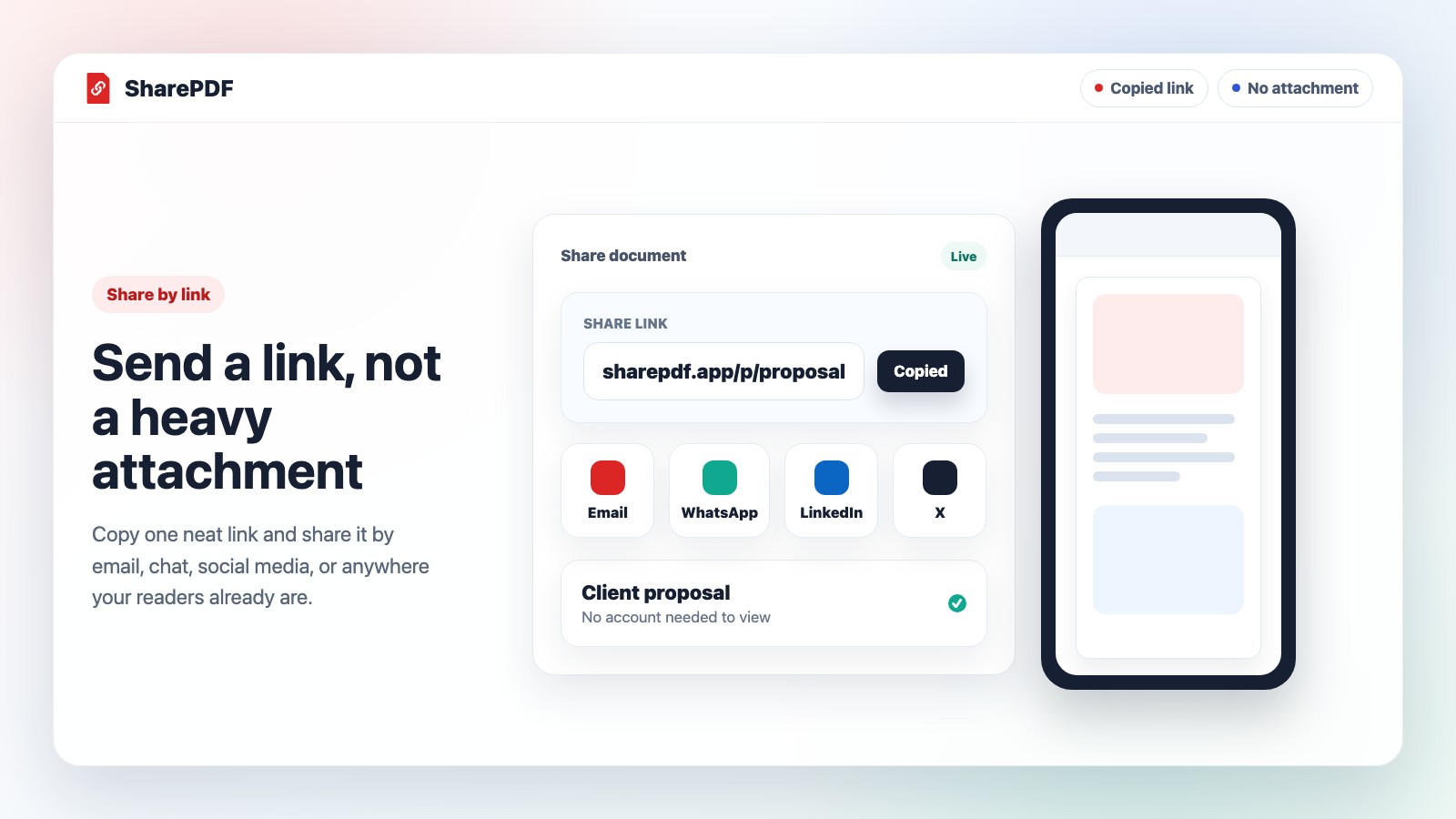
- Open the PDF to link tool and drop in the file.
- Create a free account. The file uploads as soon as you are in.
- Copy the link.
- Paste it into your email, chat or message.
SharePDF accepts files up to 5 MB on the free plan, 25 MB on Pro ($5 a month), 50 MB on Max and 200 MB on Business. A link also lets you replace the PDF without changing the link and see when it was opened. That suits files you send again and again, such as a price list, a brochure or a portfolio.
3. Share from cloud storage
Google Drive, Dropbox and OneDrive all handle large files. Upload the PDF, open Share, and set access to "anyone with the link" if the reader is outside your company.
The usual problem is access. If a Drive file is Restricted, the reader sees a request-access screen and waits for you. Check the link in a private browser window before you send it. More on this in Google Drive alternatives for sharing PDFs.
4. Use Mail Drop on a Mac or iPhone
Apple Mail can send attachments up to 5 GB with Mail Drop. The file is uploaded to iCloud and the recipient gets a download link, which works for 30 days. It is handy for a one-off file from a Mac or iPhone. After 30 days the link stops working, so it is not for anything you want to stay online.
5. Use a file transfer service
Services such as WeTransfer send very large files as a download link. They suit a one-time handover of a huge file, such as print-ready artwork. Free transfers expire after a few days and there is nothing to view in the browser, so the reader has to download the whole file first.
Which way to pick
- Under 25 MB and sent once: attach it.
- Too big, and image-heavy: compress it first.
- You will send it often, or may update it: a PDF link.
- Shared inside a team: cloud storage.
- A one-off file of several GB: Mail Drop or a file transfer service.
Sending a large PDF on WhatsApp
WhatsApp accepts documents up to 2 GB, but the reader still downloads the whole file over their mobile data. A link opens faster on a phone. Steps: how to share a PDF on WhatsApp.
FAQ
What is the largest PDF I can email?
About 25 MB on Gmail and 20 MB on Outlook's default setting, for all attachments together. Work accounts can be set higher or lower by an administrator.
How do I send a 50 MB PDF?
Compress it if it is image-heavy, or upload it and send a link. SharePDF's Max plan takes files up to 50 MB, and Business up to 200 MB.
Does sending a link lower the quality?
No. The reader sees the same PDF you uploaded, at full quality.
Can I send a large PDF from my phone?
Yes. Upload it to a PDF link tool or cloud storage from your phone's browser, then paste the link into your message.
Will the reader need an account?
Not for a SharePDF link. Cloud storage links depend on their sharing setting.
Is it safe to send a large PDF as a link?
Use an unlisted link so only people you send it to can open it. For sensitive files, add a password on a paid plan. See protecting a PDF.