Deliver a Lead Magnet PDF Without a Website
Share a lead magnet PDF with one link, ask for an email before it opens, and export the leads. No landing page, no website.
Quick answer: you do not need a website or a landing page to give away a PDF for an email address. Upload the PDF, turn on the email gate, and share the link. Readers type their email before the PDF opens, and you export the list as a CSV. On SharePDF the email gate needs a paid plan, from $5 a month.
Three ways to deliver a lead magnet
| Plain PDF link | PDF link with an email gate | Landing page tool | |
|---|---|---|---|
| Collects emails | No | Yes | Yes |
| Needs a website | No | No | No, but you build a page |
| Setup | Upload | Upload, switch on the gate | Design a page and a form |
| Sends emails for you | No | No | Usually, with an email tool |
| Good for | Giving it away | A simple list from one PDF | A full funnel |
A plain link is fine when you only want people to read the guide. It cannot tell you who they were. A landing page tool does more, and takes longer to set up. An email gate on the link sits between the two.
Set up the email gate
- Upload the PDF to SharePDF. Word and PowerPoint files are converted to PDF.
- Turn on email capture in the PDF's settings. This needs a paid plan.
- Share the link wherever your audience is: a social post, your bio, an email signature, an ad or a QR code.
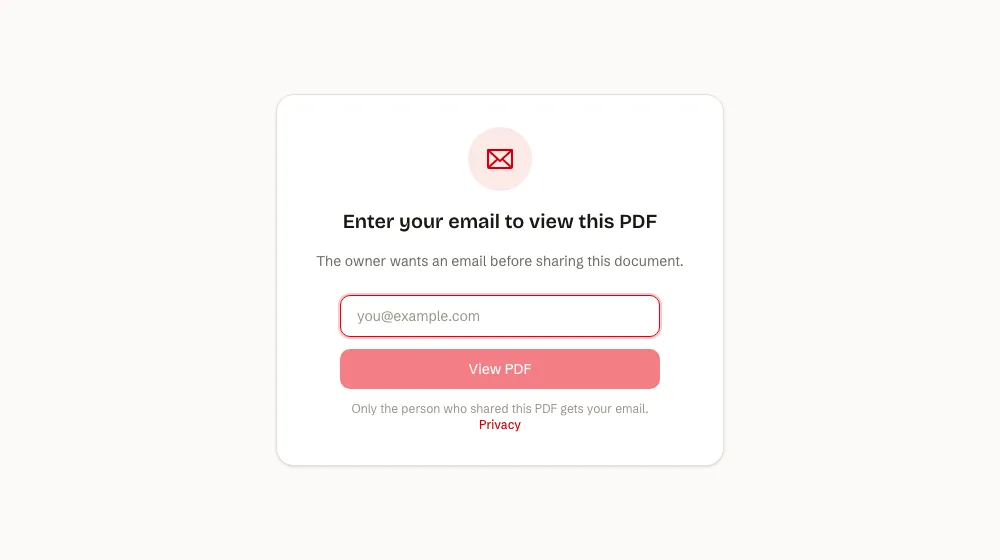
A reader who opens the link sees an email field and one short line saying that only the person who shared the PDF gets their address, with a link to the privacy policy. They do not create an account. After they submit, the PDF opens. More detail: email gate for PDFs.
Where the emails go
Captured emails appear on the Leads screen in your dashboard. You can export them as a CSV with the email, the PDF name, the referrer and the date.
There is no direct connection to Mailchimp, HubSpot or Zapier yet. Export the CSV and import it into your email or CRM tool by hand.
Update the PDF without changing the link
When you fix a typo or publish a new edition, replace the file. The link stays the same, so old posts and printed QR codes keep working.
Be fair about the email
- Say why you ask. Tell people in your post what they get and what you will send them.
- An email to open one PDF is not consent to marketing. Rules such as GDPR ask for consent that is specific and informed. If you plan to email people, say so, and let them choose.
- Expect fewer readers. A gate trades some readers for contact details. Keep it for documents worth the exchange.
- Expect some fake addresses. Every gated form gets them.
See what happens after the click
On paid plans, PDF analytics show views over time and where readers came from, so you can see which post or ad sent people to the guide.
FAQ
Can I do this on the free plan?
You can share the PDF as a link for free, with a total view count. Collecting emails needs a paid plan. See pricing.
Does the email gate work on a phone?
Yes. The form and the PDF open in the phone's browser, with no app.
Can I see who downloaded the PDF?
You see the emails of people who passed the gate. SharePDF does not record which of them pressed the download button. You can turn downloads off if readers should not keep a copy.
Do I need a landing page at all?
No. The email form sits on the PDF link itself. A landing page helps when you want to explain the offer at length or run a full email sequence.
Can I change the PDF later?
Yes. Replace the file and the link stays the same.