Free Digital Menu From a PDF (No Ordering System)
Turn your PDF menu into a digital menu with one link and one QR code, then change prices later without reprinting. No ordering system needed.
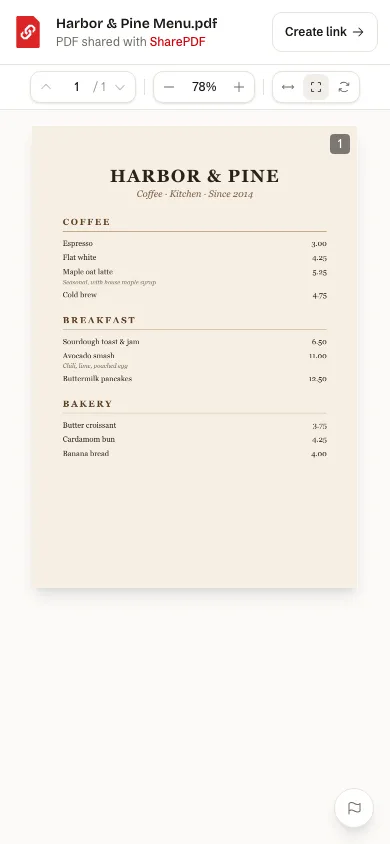
Quick answer: if you already have your menu as a PDF, you do not need a menu platform. Upload the PDF, get one link and one QR code, and put them on your tables, your window, Instagram and Google. When prices change, replace the PDF. The link and the printed QR code stay the same.
What a PDF digital menu does, and does not do
A digital menu from a PDF is your existing menu, opened on a phone from a link or a QR code.
It does:
- Open in the phone's browser, with no app.
- Work from a QR code on a table, a window or a flyer.
- Let you change the menu without reprinting the code.
It does not:
- Take orders or payments.
- Know which table a customer is at.
- Show live stock, or hide a dish that has sold out.
If you need ordering and payment at the table, a restaurant ordering system is the right tool. If customers order from staff and only need to read the menu, a PDF is enough.
How to make one
- Export your menu as a PDF. From Canva, Word or your designer. Keep the file small: the free plan takes files up to 5 MB.
- Upload it to SharePDF. You get a link that opens in the browser.
- Download the QR code. It comes as PNG, SVG or a print-ready PDF. See the PDF QR code generator.
- Print the code on table cards, stickers or the window. Sizes and placement are covered in menu QR code size and placement.
The full walk-through, with tips for restaurants, is in QR code menus.
Change prices without reprinting
When the menu changes, upload the new PDF with Replace file. The link does not change, so every printed QR code now opens the new menu. This is on the free plan. More in update a menu without reprinting the QR code.
Check it on a phone first
Most customers will read the menu on a phone, in poor light, with one hand.
- Use a tall page, not a wide spread. Two A4 pages side by side are hard to read on a phone.
- Keep text large. If you have to zoom to read a price, so will your customers.
- Keep the file small. Compress photos before exporting. A smaller file opens faster on mobile data.
- Scan your own code from the printed card, not the screen, before you print 50 of them.
Where to put the link
- On the tables and the window, as a QR code.
- On Google. See add a menu to your Google Business Profile.
- On Instagram. Put the link in your bio. See PDF link in an Instagram bio.
- On WhatsApp. Send the link when a customer asks for the menu. It opens without a download.
PDF menu or website menu
A PDF is quicker to make and looks exactly like your printed menu. A menu built as a web page reads better on small screens and can be found in search. The trade-offs are in PDF menu vs website menu.
FAQ
Is it free?
Yes, within the free plan: 2 active PDFs of up to 5 MB each, with a QR code and file replacement. That covers a food menu and a drinks menu. Larger files and more PDFs need a paid plan, from $5 a month.
Do customers need an app?
No. The QR code opens the menu in the phone's browser.
Can I see how many people viewed the menu?
Yes. Every plan shows a total view count for each PDF. Views over time, countries and devices need a paid plan. The count is of views of the menu, not scans of the code.
Will the QR code stop working?
The code points to your link, and the link works for as long as the PDF stays in your account. If you delete the PDF, the code stops working.
Can I have the menu in two languages?
Yes. Put both languages in one PDF, or upload two PDFs and print two codes.