How to Put a PDF Link in Your Instagram Bio
Instagram cannot host a PDF, but your bio can link to one. Turn the PDF into a link, add it to your profile, and use story link stickers for new files.
Quick answer: Instagram cannot hold a PDF file, but your profile can link to one. Upload the PDF to get a short link, then add it in Edit profile under Links. Instagram allows up to five links on a profile. People tap the link and the PDF opens in their browser.
Step 1: Turn the PDF into a link
- Open the PDF to link tool, drop in your PDF and create a free account. Word and PowerPoint files work too.
- Keep it unlisted, so it is not listed anywhere but still opens for anyone with the link.
- Copy the link.
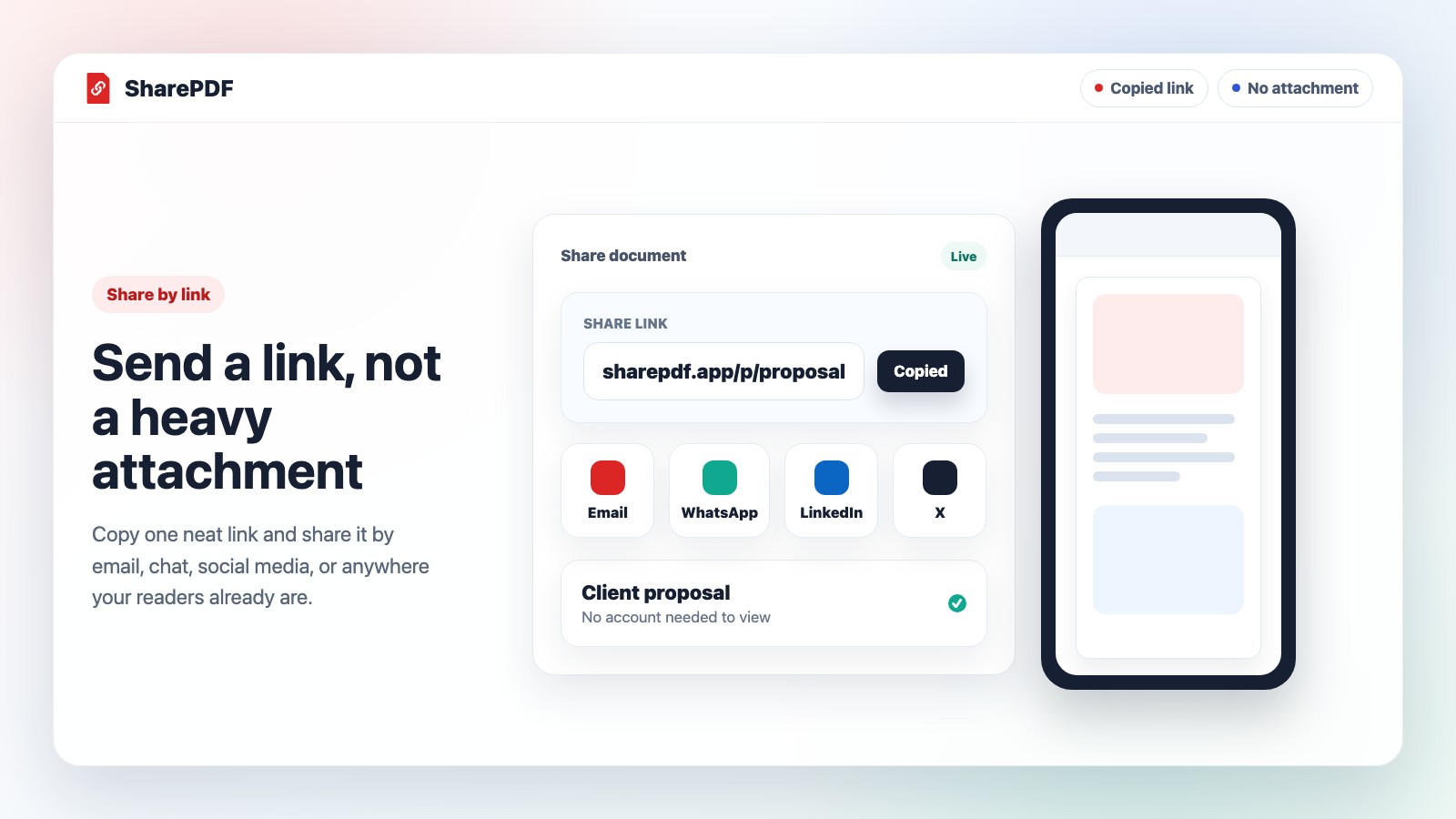
Use a short, readable name for the link, such as the menu, price list or portfolio name. Some people will see the link written out before they tap it.
Step 2: Add the link to your Instagram bio
- Open your profile in the Instagram app and tap Edit profile.
- Tap Links, then Add external link.
- Paste the PDF link and give it a title, such as "Menu" or "Price list".
- Save.
Instagram shows the first link in your bio and the rest behind "and more". Put the PDF people ask for most first. You can drag links to change their order.
Step 3: Point people to it
- Say "Menu link in bio" or "Full price list in bio" in posts and reels.
- Pin a post that explains what the link opens.
- Reply to DMs that ask for the menu or brochure with the same link.
Share a PDF in a story
To share a new PDF for a short time, such as an event programme or a weekly special, use a link sticker in a story:
- Create a story and tap the sticker icon.
- Choose Link and paste the PDF link.
- Add a short label, such as "This week's menu".
Stories disappear after 24 hours unless you save them as a highlight. Save the story to a highlight called "Menu" or "Info" so the link stays on your profile.
Keep the link the same when the PDF changes
Your bio link should not change every time the file does. With SharePDF you can replace the PDF without changing the link. Upload the new menu, price list or portfolio, and the link already in your bio opens it.
What people use it for
| Account | PDF behind the bio link |
|---|---|
| Restaurant or cafe | Menu and allergen list |
| Photographer | Portfolio and price guide |
| Coach or trainer | Programme and booking terms |
| Shop or brand | Catalogue or lookbook |
| Creator | Media kit and rate card |
| Author or teacher | Free guide or worksheet |
For a portfolio, see sharing a portfolio as a PDF link. For restaurants, see restaurant menus.
See whether people open it
Instagram's own insights tell you how many people tapped your profile links. The PDF link tells you whether the file was opened. SharePDF's free plan shows a total view count. Paid plans add referrers, so you can see how many views came from Instagram against WhatsApp or email.
FAQ
Can I upload a PDF to Instagram?
No. Posts and stories take photos and videos. Link to the PDF instead, or post the pages as images if you want them in the feed.
How many links can I add to my Instagram bio?
Up to five. The first one shows on your profile, and the rest open from a short list.
Will people need an account to open the PDF?
No. A SharePDF link opens in the browser with no sign-up.
Can I use the same link on TikTok and LinkedIn?
Yes. The link works anywhere you can paste one, and views from each place show as referrers on paid plans.
What if I need to update the PDF?
Replace the file in SharePDF and keep the same link, so nothing in your bio needs to change.