The SharePDF Features That Make PDF Sharing Easier
A simple look at the most useful SharePDF features: clean PDF links, document uploads, QR codes, access controls, email capture, custom domains, and view tracking.
SharePDF started with a simple idea: upload a PDF and get a clean link you can send to someone.
That is still the main idea. But over time, SharePDF has grown into a more useful tool for people who send proposals, reports, menus, portfolios, guides, brochures, and client documents.
This post is a simple tour of the most useful features. Not every tiny setting, just the things that can make PDF sharing easier in real life.
1. Upload PDFs, Word files, and PowerPoint decks
You do not always start with a perfect PDF.
Sometimes you have a Word document. Sometimes you have a PowerPoint deck. Sometimes you have a finished PDF that is ready to send.
SharePDF lets you upload:
- PDF files
- Word files
- PowerPoint files
Word and PowerPoint files are converted to PDF before sharing. That means your viewer gets a normal PDF page, even if you started with a .docx or .pptx file.
You can also upload more than one file at a time. The upload queue shows progress, so you know what is uploading, what is ready, and what still needs attention.
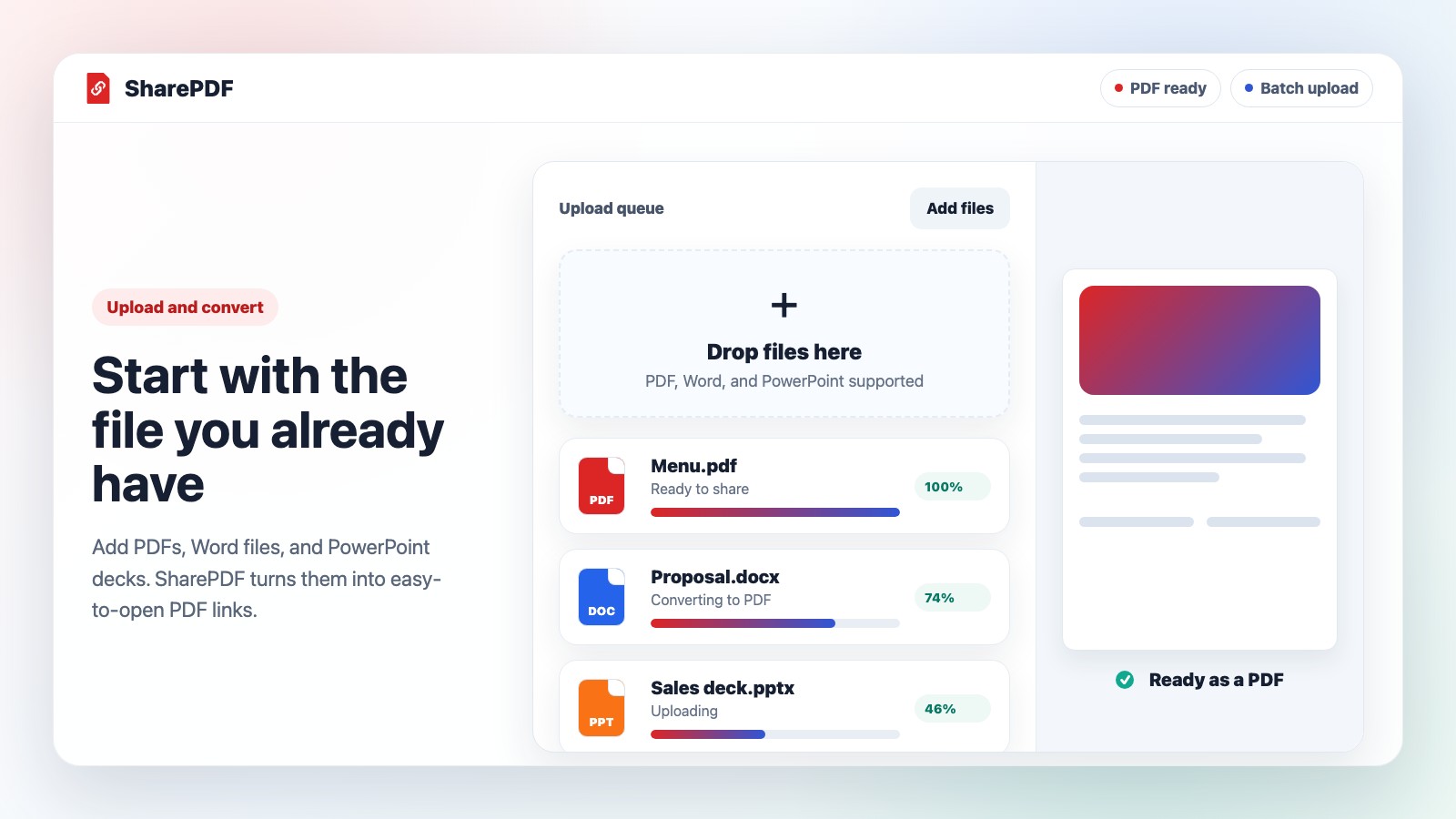
This is useful when you are preparing several client files, course handouts, product sheets, or reports at once.
2. Get a clean link instead of sending a heavy attachment
Email attachments are familiar, but they can be annoying.
Large files may fail to send. People can lose the attachment in a long email thread. And if you update the file later, everyone may still have the old version.
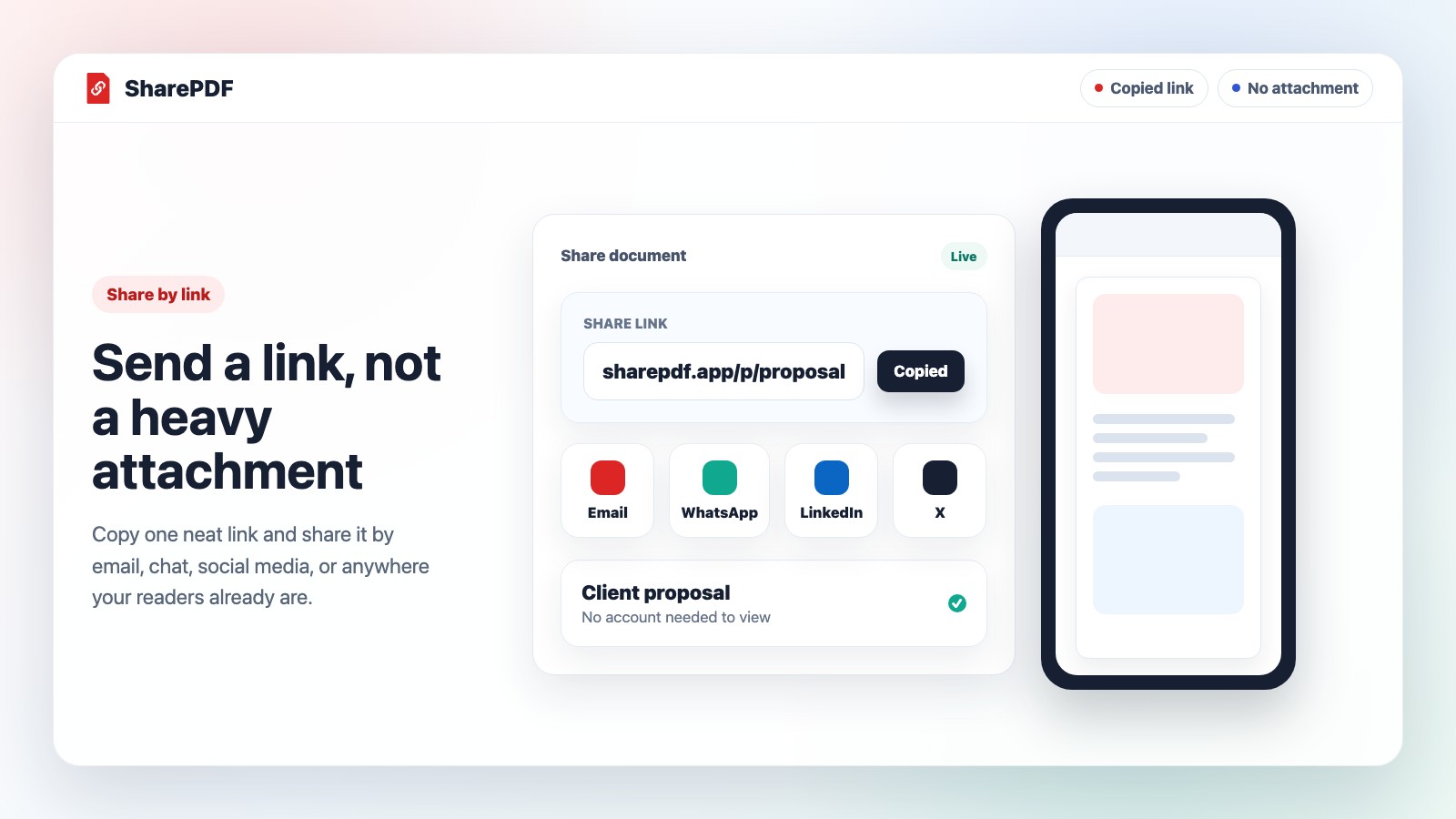
With SharePDF, each document gets a link. You can copy that link and send it anywhere:
- WhatsApp or Slack
- LinkedIn or X
- Your website
- A QR code
Viewers do not need a SharePDF account. They just open the link in their browser.
This is the main job SharePDF is built for: make the document easy to open.
3. Keep your documents organized
If you only share one PDF, organization is not a big problem.
But once you have proposals, menus, reports, lead magnets, portfolios, and client files, you need a simple place to manage everything.
The SharePDF dashboard shows your PDFs, links, view counts, file sizes, and settings in one place.
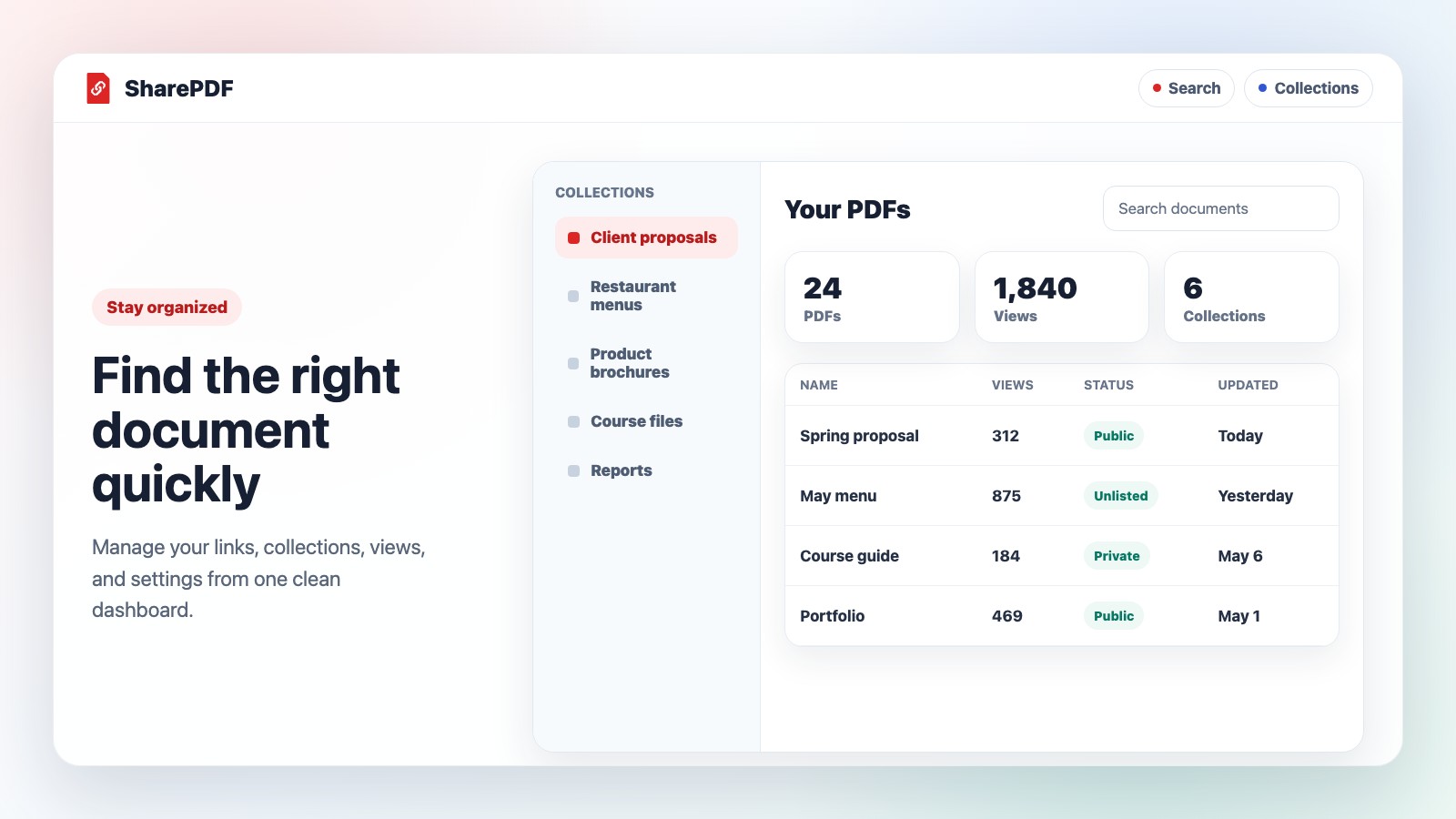
You can search your PDFs, sort them, and put them into collections. A collection works like a folder, so you can keep related documents together.
For example, you could create collections for:
- Client proposals
- Restaurant menus
- Product brochures
- Course material
- Reports
- Portfolio files
You can also move several PDFs at once, change their visibility, turn downloads on or off, or move old files to trash.
4. Replace a PDF without changing the link
This is one of the most helpful features if your document changes often.
Imagine you shared a menu, proposal, or price list. Later, you notice a typo or need to update the content.
Without SharePDF, you might need to upload a new file, send a new link, and hope everyone uses the latest one.
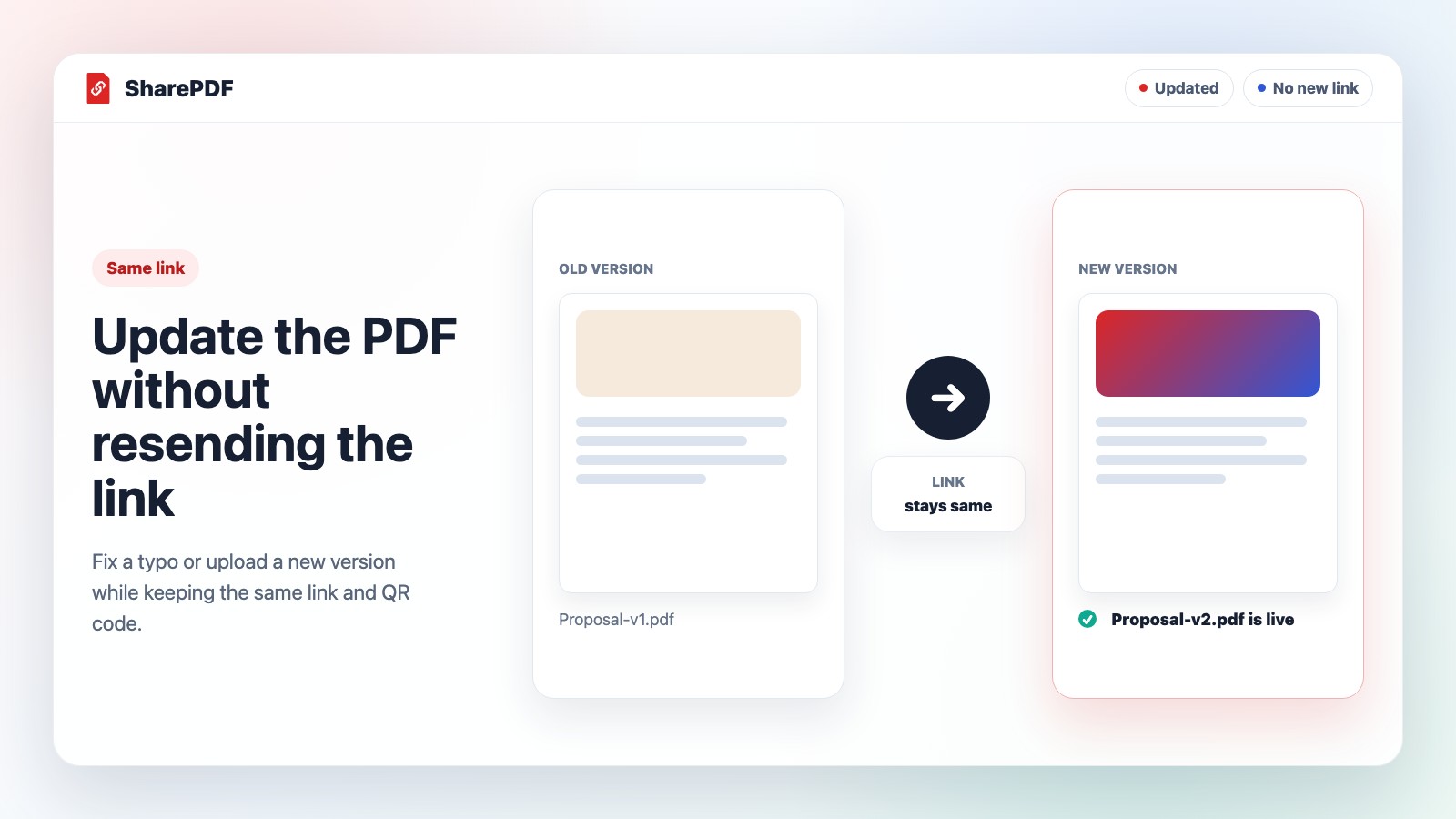
With SharePDF, you can replace the file behind the link.
The link stays the same. The QR code stays the same. People who open the link see the new PDF.
This is useful for:
- Menus
- Sales catalogs
- Client proposals
- Pitch decks
- Event schedules
- Monthly reports
It keeps things simple for your readers because they do not need to hunt for the newest version.
5. Create QR codes and website embeds
Sometimes a link is not enough.
If your PDF needs to be opened from a poster, flyer, restaurant table, event handout, product package, or printed sign, a QR code is easier.
SharePDF can create a QR code for your PDF link. People scan it and open the PDF on their phone.
You can also copy embed code if you want the PDF to appear inside your own website page.
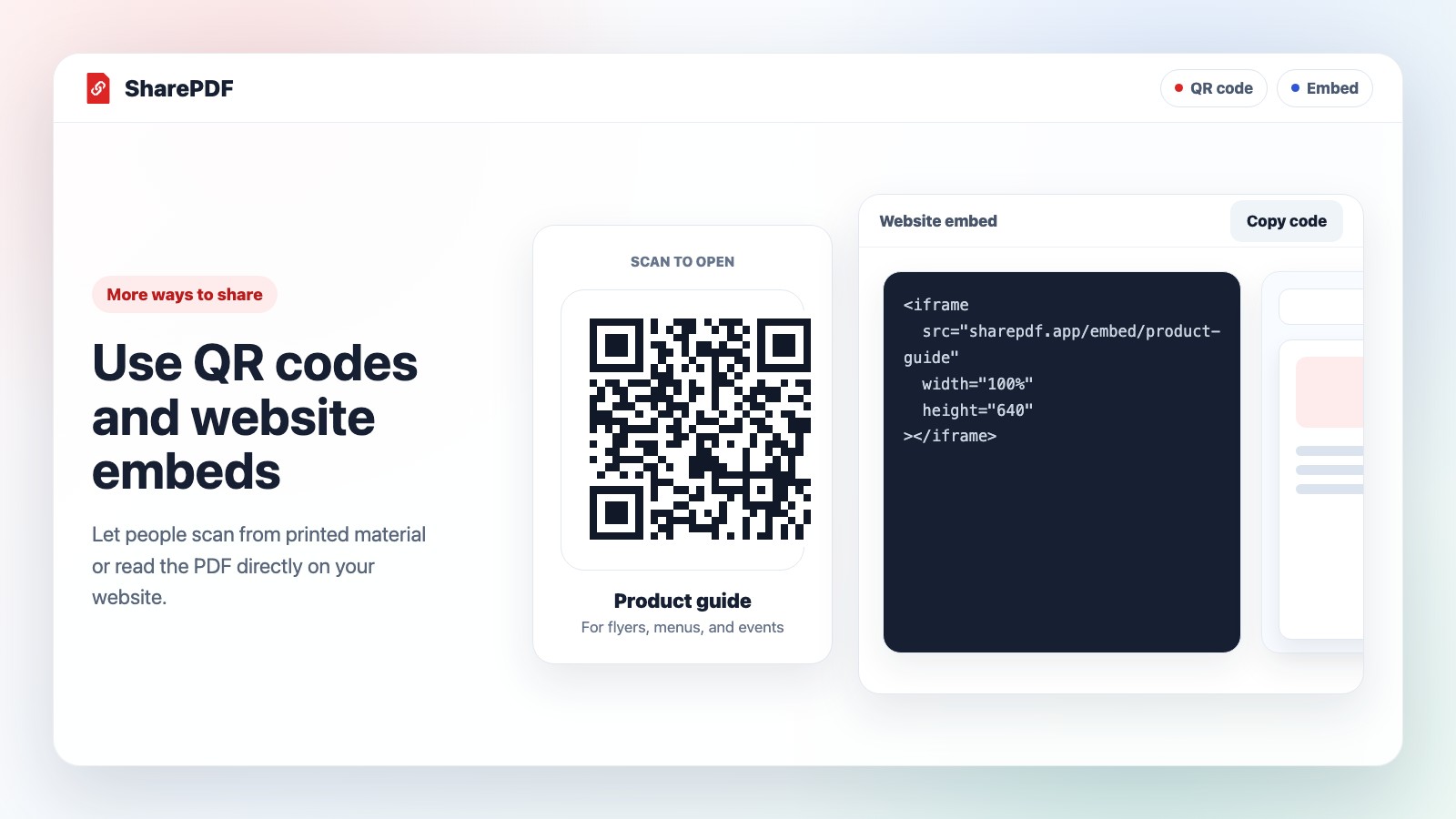
Use QR codes when people are offline. Use embeds when people are already on your website.
6. Choose who can open the PDF
Not every PDF should be treated the same way.
Some documents are public. Some are only meant for people with the link. Some should stay private.
SharePDF gives you simple visibility options:
- Public: easy to open and may be found by search engines.
- Unlisted: anyone with the link can open it.
- Private: only you can open it.
For documents that need more care, paid plans also include password protection and expiry dates.
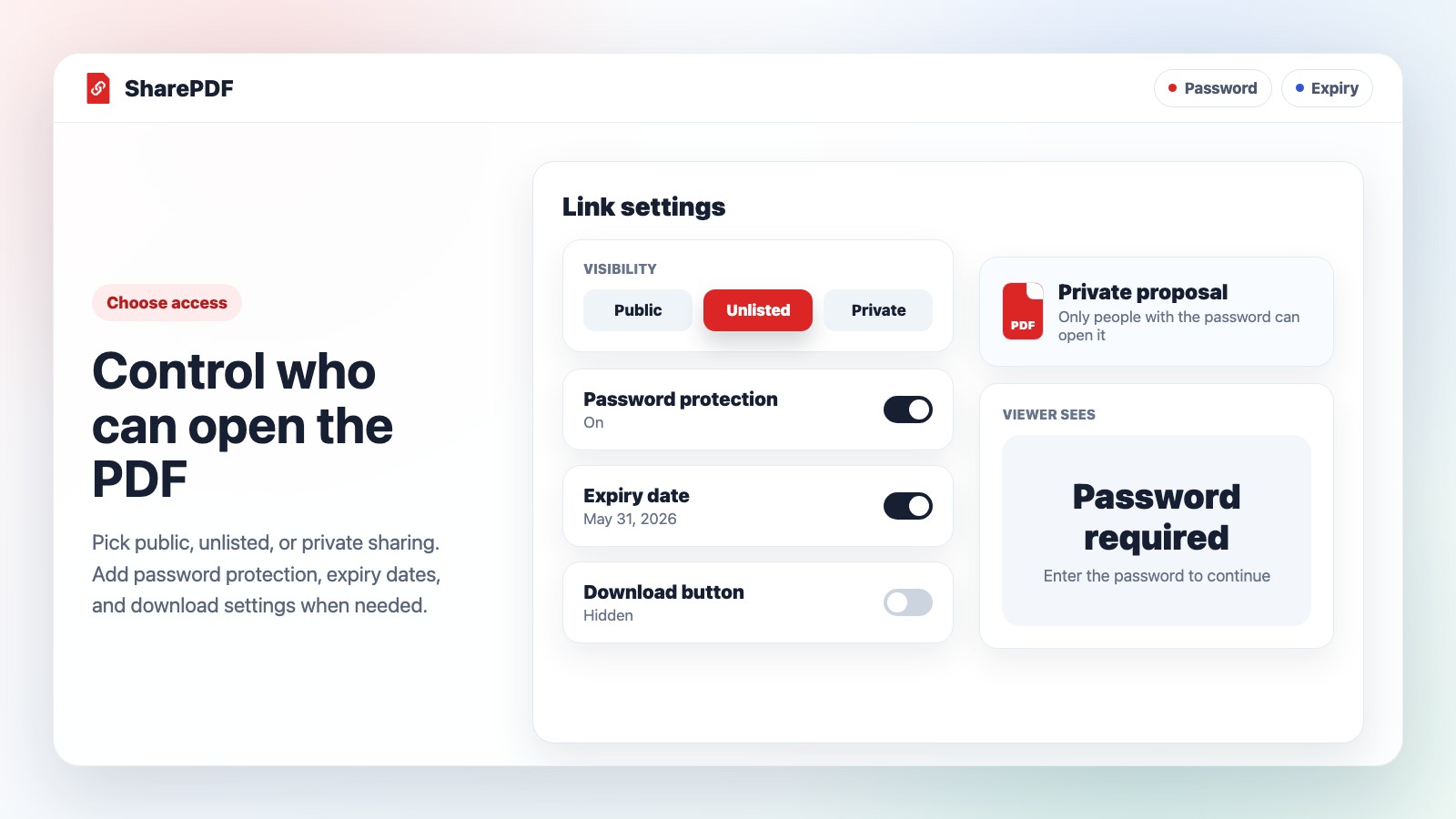
Password protection is helpful when you want to share a document with a smaller group.
Expiry dates are helpful when a link should stop working later, such as after an event, proposal deadline, or limited-time offer.
You can also choose whether the PDF page shows a download button. This is good when you want people to read the PDF in the browser first.
One important note: hiding the download button is not the same as making saving impossible. If someone can view a document, a technical person may still find a way to save it. But for most normal viewers, removing the visible download button keeps the experience focused on reading.
7. Collect emails before a PDF opens
Some PDFs are meant to be shared freely. Others are useful enough that you may want to ask for an email first.
For example:
- A buyer guide
- A checklist
- A brochure
- A white paper
- A course preview
- An event handout
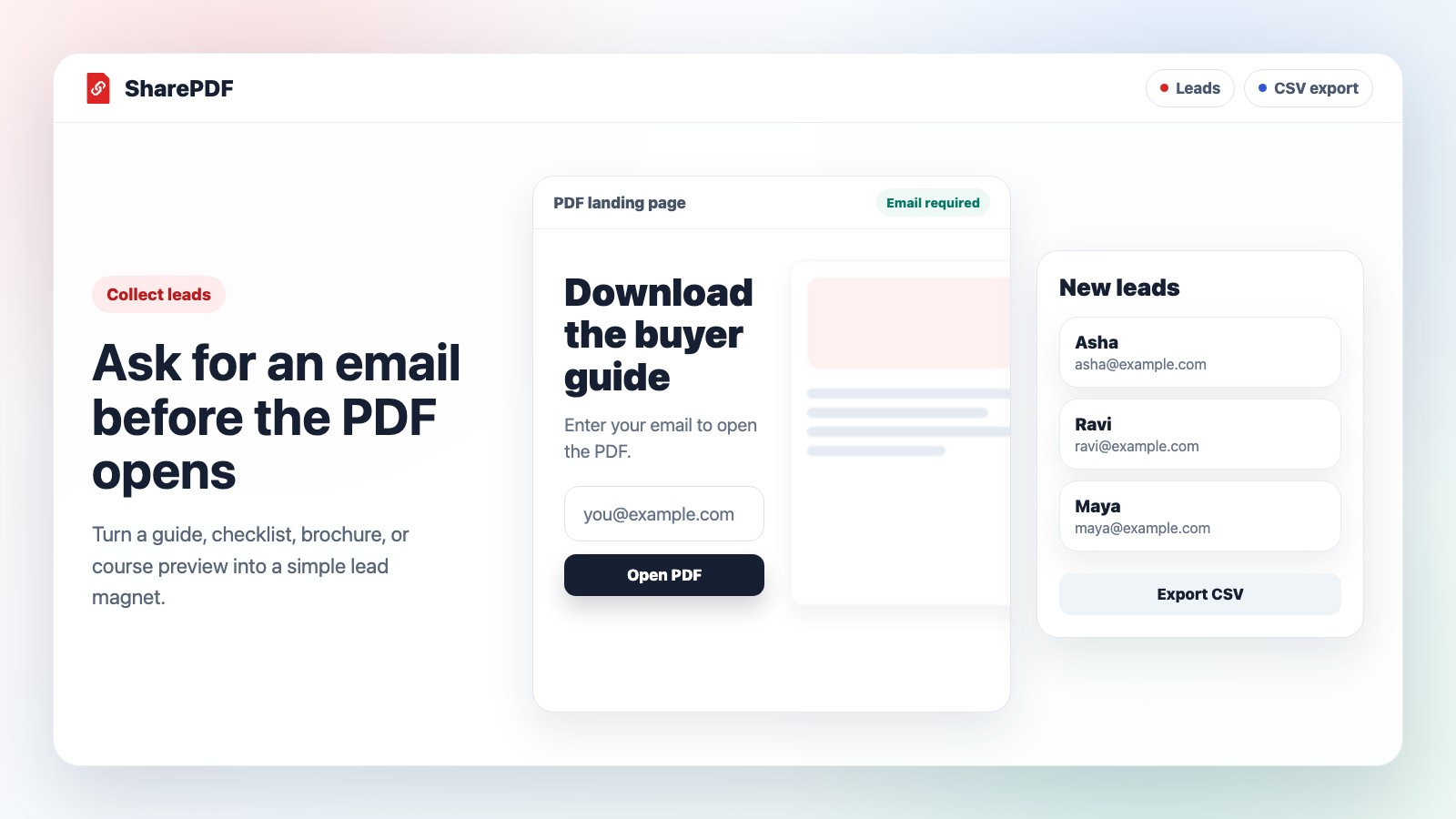
With email capture, the viewer enters their email before the PDF opens. You can then see those emails in your leads area and export them as a CSV file.
This turns a helpful PDF into a simple lead magnet without needing a separate form tool.
It is best to use this only when it makes sense. If a PDF should be easy for everyone to open, keep it open. If follow-up is important, email capture can help.
8. See if people open your PDFs
When you send a normal attachment, you usually do not know what happens next.
Did the person open it? Did anyone visit the link from your website? Did your guide get attention after you posted it?
SharePDF shows view activity so you are not guessing.
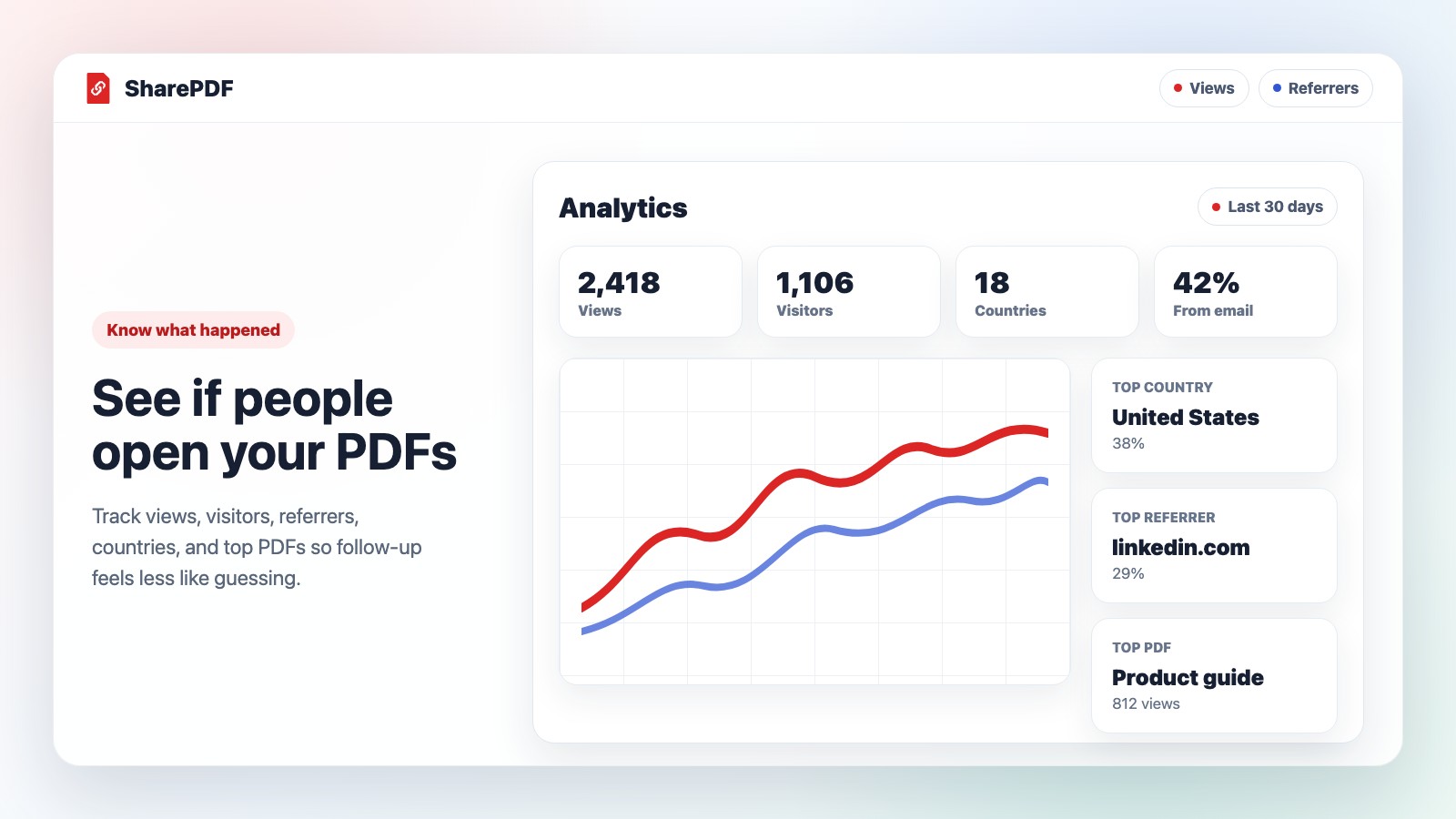
Depending on your plan, you can see things like:
- Total views
- Views over time
- Top countries
- Referrer sources
- Top PDFs
- Unique visitors
This is useful for client follow-up, proposals, portfolios, reports, and public resources.
For example, if you send a proposal and later see that it was opened, you know it may be a good time to follow up.
9. Use your own domain for PDF links
SharePDF links are already clean, but some teams want links that use their own brand.
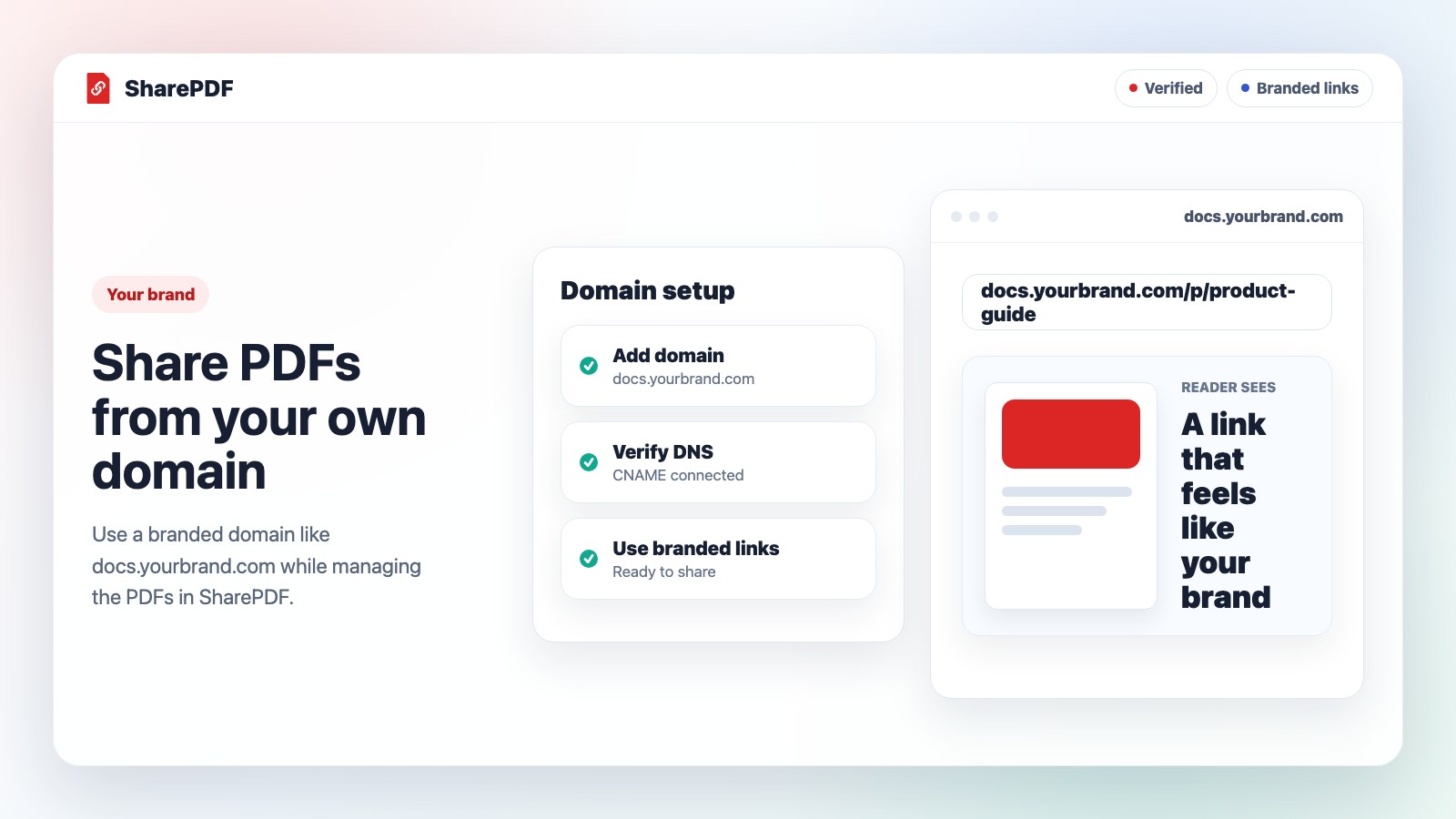
With custom domains, your PDF links can use a domain like:
docs.yourbrand.com
This can feel more familiar to clients, customers, and readers. It is especially useful for agencies, consultants, restaurants, creators, and businesses that send documents often.
You still upload and manage PDFs in SharePDF. The difference is that the links can use your own domain.
A simple way to think about SharePDF
You do not need to use every feature.
Most people can start with this simple flow:
- Upload a PDF, Word file, or PowerPoint deck.
- Copy the clean link.
- Share it with the right people.
- Check views later.
Then add extra controls only when you need them.
Use a QR code for printed material. Use password protection for private files. Use expiry dates for time-sensitive documents. Use email capture for lead magnets. Use a custom domain when branding matters.
That is the whole point of SharePDF: simple PDF sharing first, with extra tools when your document needs more.