7 Ways to Share a PDF Online
Discover the best ways to share a PDF online, from email attachments and cloud storage to dedicated PDF hosting services.
You have a PDF and you need to get it to someone. Maybe it's a proposal, a resume, a report, or a presentation. The method you choose depends on a few things: how big the file is, whether you want to know if they opened it, how long the link needs to last, and how polished the experience should feel.
Here's a straightforward look at every option available to you.
1. Email Attachments
The most familiar method. You attach the PDF to an email and hit send.
It works, but there are some real limits. Gmail caps attachments at 25MB. Outlook stops at 20MB. If your PDF is larger than that, the email simply won't send. There's also no way to tell if the recipient actually opened the file - it could sit unread in their inbox forever, buried under a pile of other messages.
Email attachments also create copies. Every person you send to gets their own version, which means if you update the document later, everyone has an outdated copy.
Good for: Small files, sending to one person, quick one-off shares where you don't need tracking.
2. Cloud Storage (Google Drive, Dropbox, OneDrive)
Upload your PDF to a cloud storage service and share a link. You can set permissions to control who can view, comment, or download the file.
The upside is that the file stays synced. If you update the PDF, everyone with the link sees the latest version. Most cloud storage services also give you generous free storage.
The downsides are real, though. Recipients sometimes need their own account to view the file, which leads to the dreaded "Request access" screen. Your PDF gets wrapped in the provider's interface - toolbars, menus, sign-in prompts - rather than being presented cleanly. And you don't get any view analytics unless you're on a paid business plan.
Good for: Team sharing, internal documents, files you plan to update frequently.
3. File Transfer Services
Services like WeTransfer let you upload a file, get a download link, and send it off. No account needed for basic transfers. WeTransfer's free tier handles files up to 2GB, which covers most PDFs easily.
The catch is that links expire. On WeTransfer's free plan, links last just 7 days. After that, the file is gone. There's also no way to track who viewed or downloaded the file, and recipients download the PDF rather than viewing it in their browser - which adds an extra step.
Good for: One-time sends of large files where you don't need a permanent link.
4. PDF Hosting Services
This category is purpose-built for sharing PDFs. You upload a document and get a permanent link. When someone clicks the link, the PDF opens directly in their browser - no download required, no account needed on their end.
SharePDF app is built around this idea. You drag and drop your PDF, and you get a clean URL like sharepdf.link/s/kbTs65n.pdf. Recipients see your document in a distraction-free viewer with no ads and no tracking cookies on the viewer page. You get view analytics so you know when someone opens your document. You can set custom URLs, and there's a toggle to control whether viewers can download the file or only view it online. The free tier gives you 2 PDFs up to 5MB each. Paid plans start at $5/month and raise those limits.
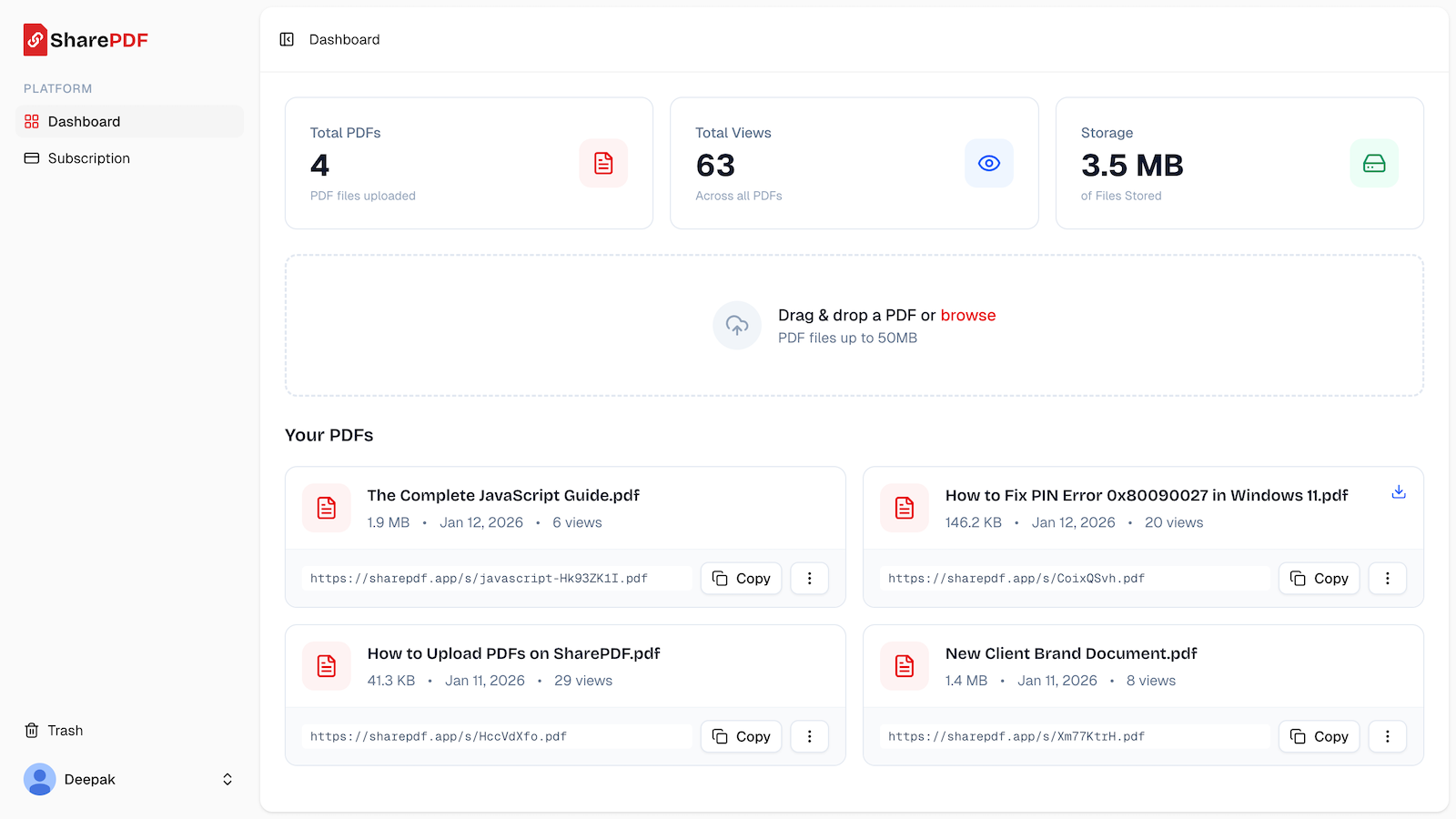
Other services in this space include Docdroid, which is free but displays ads around your document, and Tiiny Host, which is simple but has a limited free tier.
Good for: Proposals, portfolios, reports, resumes - anything you want viewed directly in the browser with a clean, professional experience.
5. Messaging Apps (WhatsApp, Slack, Telegram)
If you're already in a conversation with someone, sending a PDF through a messaging app is fast and convenient. Most messaging apps support file attachments, and the recipient gets it instantly.
The problem is permanence. Files get buried in chat history within hours. There's no way to track whether someone opened the document. And if the conversation is in a busy group chat, the file disappears under a flood of messages.
A better approach: upload your PDF to a hosting service first, then share the link in the chat. That way the document has a permanent home even after the conversation scrolls away.
Good for: Quick, informal shares within existing conversations.
6. Social Media and Publishing Platforms
Some social platforms support PDF sharing natively. LinkedIn lets you upload a PDF as a post, and it turns the pages into a swipeable carousel - which is great for visual content like presentations or infographics. SlideShare is built specifically for sharing presentations and documents publicly, and it's good for discoverability if you want your content found by a wider audience.
Most other platforms - X, Facebook, Instagram - don't support PDF uploads directly. For those, you'll need to host the PDF somewhere and share the link.
Good for: Public content, thought leadership, building an audience around your work.
7. Embedding PDFs on a Website
If you have your own website and want to display a PDF directly on a page, you have a few options.
The simplest approach is an <iframe>:
<iframe src="/path/to/document.pdf" width="100%" height="600px"></iframe>
This works in most modern browsers, but the viewing experience depends on the browser's built-in PDF viewer, which varies.
For more consistent cross-browser behavior, you can use Google Docs Viewer:
<iframe
    src="https://docs.google.com/viewer?url=YOUR_PDF_URL&embedded=true"
    width="100%"
    height="600px"
></iframe>
For full control over the viewer's appearance and functionality, PDF.js by Mozilla is the standard open-source option. It renders PDFs using JavaScript and gives you complete control over the interface.
Good for: Documentation pages, product spec sheets, embedding manuals or guides on your website.
Picking the Right Method
There's no single best way to share a PDF - it depends on the situation.
- Sending to one person quickly? Email attachment.
- Sharing with a team that needs the latest version? Cloud storage.
- Sending a large file as a one-off? File transfer service.
- Need a permanent, trackable link with a clean viewer? PDF hosting service.
- Quick share in an existing chat? Messaging app with a hosted link.
- Sharing publicly for visibility? LinkedIn or SlideShare.
- Displaying on your own site? Embed with an iframe or PDF.js.
If you need a quick, shareable link for a PDF, give SharePDF a try - it's free to start.